

Professional services
Every client, engagement and Action in one place
Win the client, run the engagement as a Project, keep the meeting notes and report on how the work stands. Saphion connects to Microsoft 365, and Beacon answers from your own records.
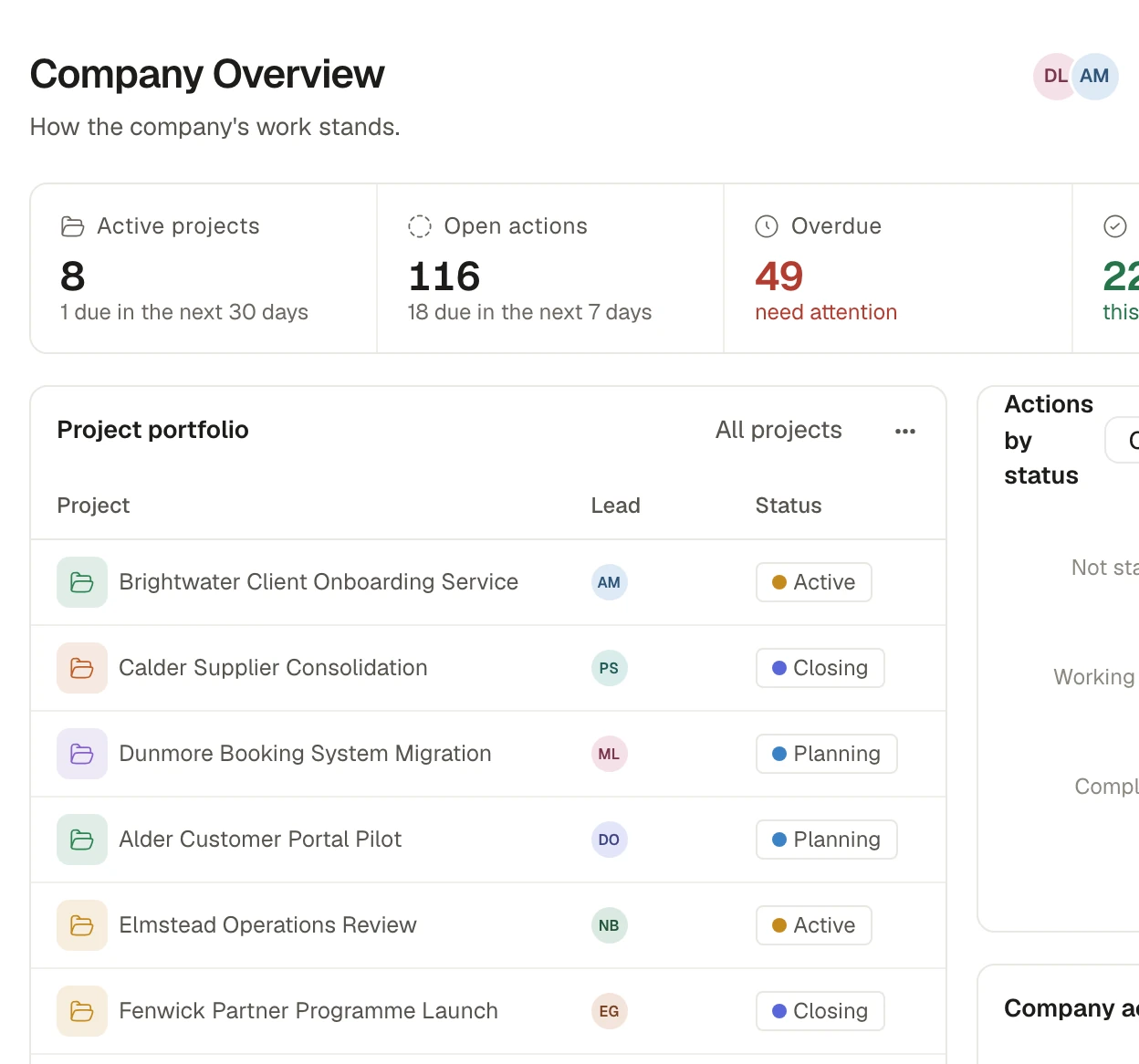
Three jobs Saphion does for a practice
Win the client, then start the work
Track leads and opportunities through your own stages in CRM. When you mark an opportunity as won, the numbered Project is made in the same step, with the client already named from your Companies.
Run the engagement
Each engagement is a Project holding its Actions, files, people and conversations. A Workload view sets each person’s working hours against the estimated effort of the work due, so you can see who has room and who is over.
Report without the rebuilding
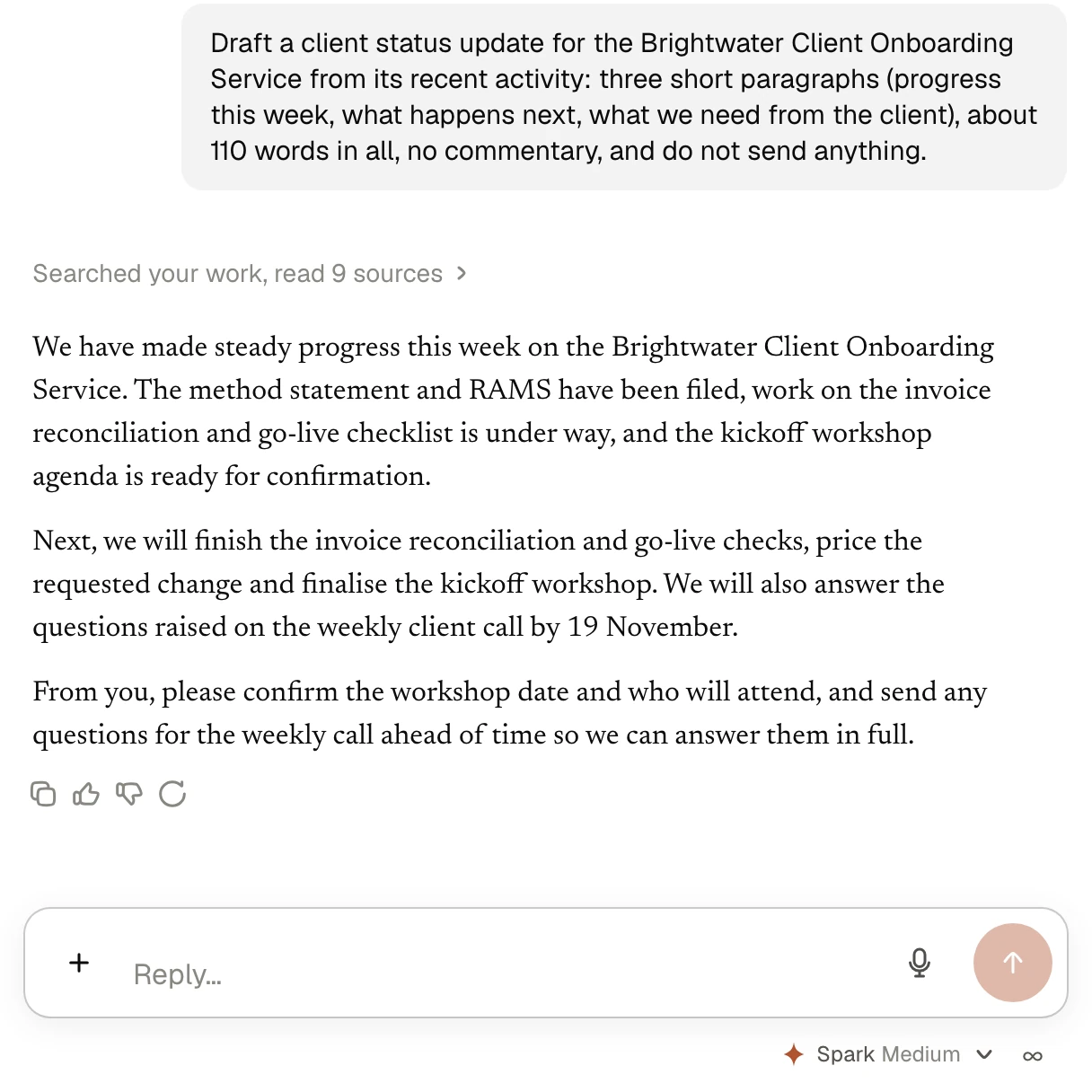
Write a Document with colleagues and Beacon, put a live chart from your data inside it, and export it to Word or PDF. Build a Dashboard of widgets over your own records, and ask Beacon to draft a client update from a Project’s recent activity, ready for you to review before anything is sent.
Meeting notes that become Actions
Add Notetaker to a Microsoft Teams meeting and, when it ends, you have a private Document with the recap, the decisions, suggested Actions and the transcript. File it in the client’s Project so the team can open it. Notetaker joins only meetings you choose, and you confirm that everyone has been told and has agreed.
How Notetaker worksA client update from the Project’s own record
Ask Beacon in plain words what needs a decision this week, or for a draft status update. It answers from the Project’s records, names what it used, and acts only as the person asking could.
Alongside the tools you already use
See every connectionMicrosoft 365
Connect Outlook, Teams, OneDrive and SharePoint once, each person’s own. Attach an email to an Action to track a request, and use the same connection in Beacon and your dashboards.
Private until you share
What you make outside a Project starts private, and a new Project is invite-only. Share by invitation, and an Admin can read who changed people, Permissions and access in the Audit history.
Your own AI tools
Your own assistant, such as Claude, Claude Code or Codex, can read and change your Saphion work too, under your access and approval rules.
Let the routine run itself
An Automation starts when something happens in your work, such as an Action being marked done or a date arriving, and does the steps you chose, including asking someone to approve. Test it on a real record first. Use a Whiteboard when the team plans together, then make the notes Actions in one go.
How Automations workGet started
Run your next engagement on Saphion
Tell us how your practice works today.