
Most teams keep their next steps in several places. Some are in a Project, some in a message, some in a list on someone’s desk. Each person has to ask around to learn what is theirs, what is late and what can wait, and a job that slips is often noticed after it has.
In Saphion an Action is one piece of work: who is doing it, when it is due and where it stands. Every Action in your Organisation is a record of the same kind, so the Action you see in a Project, in My actions and on Home is always the same Action, never a copy. Change it in one place and it changes in all of them.
My actions: what needs you, and when
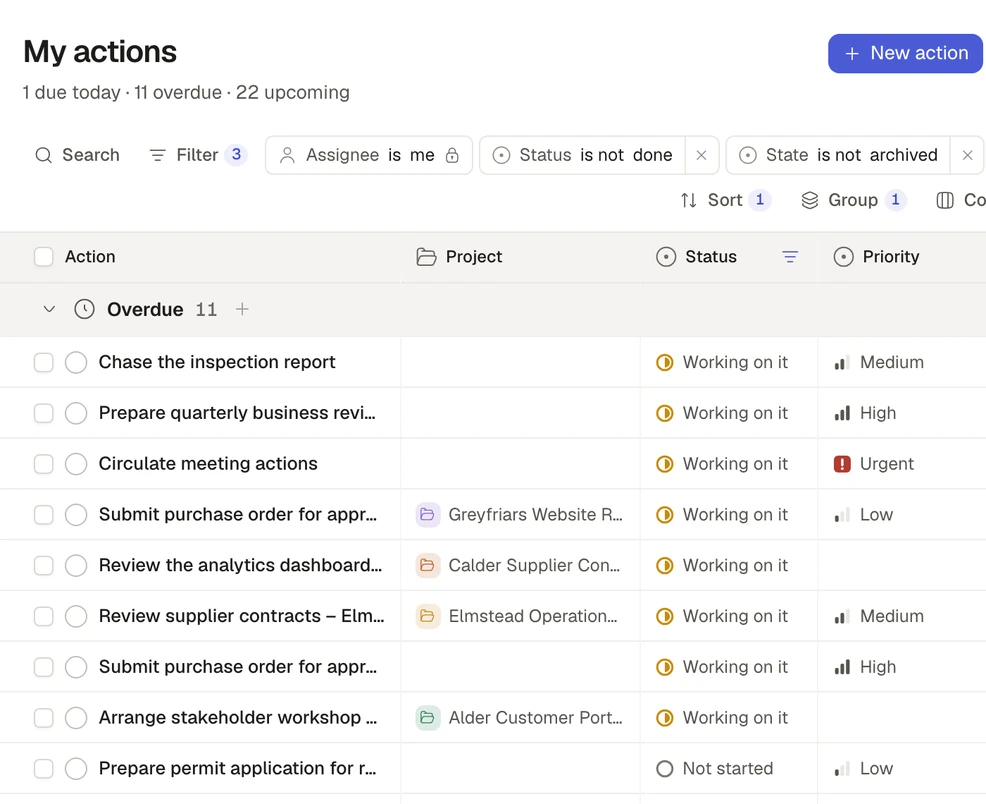
My actions lists your own Actions from every Project and product you can open, grouped by when they fall due. Overdue comes first, then Today, Upcoming and No date, with the soonest Action first in each group. The line under the heading counts what is due today, overdue and upcoming.
The page is a filter, not a separate list. Its Assignee is me or my Teams row is locked, with a padlock, and says what the page is. Everything else is yours alone: the grouping, the sorting, the filters and the columns you choose are kept for you and never change what anyone else sees. On Home, select a figure such as Open actions or Overdue and My actions opens narrowed to exactly what the figure counts, so the number and the list always agree.
Start an Action where you are
Choose New action on Home, on My actions, on the Actions page or in a Project’s header, Add action on a record, or a day on a Calendar. Saphion fills in what it knows from where you started, and shows you what it has done. A new Action is assigned to you. Made inside a Project, it belongs to that Project, and the Project is fixed and says why. Made from a Company or Contact, it is linked to that record, and you can remove the link. Made from a day on a Calendar, it takes that date.
Saphion checks this on the server, so the form and Beacon follow the same rules.
An Action in a Project is seen by the people who can open that Project. An Action in no Project is private: only the person who made it and the people it is assigned to can change, complete or delete it. Admins and team leads cannot see someone else’s private Action. In a Project, a Manager or Editor can complete any Action, and a Contributor can complete the ones assigned to them. If you may not complete one, its circle is greyed and says why when you point at it.
Five plain statuses
An Action’s status is one of Not started, Working on it, Stuck, Completed or Not required. Pick Stuck when you cannot go on and want others to see it. Pick Not required when the Action is no longer needed: it closes the Action without counting it as Completed. Tick the circle at the start of a row, or choose Mark complete in the Action’s panel, to complete it, and choose it again to reopen it.
An Action that waits on unfinished work, or on a request nobody has answered, shows a small Waiting on badge naming what it waits on. The badge never changes the status. Nobody sets it, and it clears itself when the wait ends. When the last Action yours depends on is finished, you are told it is ready to start.
These five statuses came with Saphion v0.11.1, which retired approval chains. If you want a sign-off, ask for it with an Automation’s Ask for approval step, in a rule you can see and change.
Plan when you will do it
An Action’s Timeline is its agreed start and due window. Its plan is when you mean to do the work inside that window. In a Calendar using Due, a planned Action sits on its planned days and shows the time it holds, in a week or day grid with a line for now. An Action with no plan stays on its due day. Meetings from a connected calendar, such as Outlook, appear where they fall and are read only.
Give the Action an Estimate, then drag its card to the day you want. Saphion places the plan in that day’s first free working time that can hold the work, within its agreed dates and after the work it waits on. Its deadline stays where it was. Stretch the card and the plan and the Estimate change together, with one Undo. When the work cannot fit, the planner says so: Not estimated when there is no Estimate, and Cannot fit when there is not enough free time before it is due.
When the date slips
When an Action is overdue, a notice at the top of its panel says by how many days and offers Reschedule. If you do not hold the power to change dates, it offers Propose a new date instead. The request shows in the panel as Requested date change beside the dates that still stand. The Project lead decides it, or an Admin where there is no Project lead, with Accept or Decline. By default every Member can change dates, and an Admin can take that power away.
Actions can wait on each other. When one slips, its More menu offers Move the dependent dates. It shows each Action that now starts later, with its start and due now and after, in working days, and you choose Move to make it one change. Nothing moves by itself, and you need permission to change dates on each Action or nothing moves.
Give it to a Team
An Action has one assignee: one person, or one Team. An Action given to a Team shows in My actions for every member who can open its Project, and each of them is told. Any of them can press Take it to become the assignee. Until someone does, the Team’s owners get its due and overdue reminders, and it counts in nobody’s workload. Several people on one piece of work is done with sub-Actions: each one names the Action it is Part of, and the parent’s progress counts the work beneath it.
See who has room
A Workload view sets each person’s capacity, the working time they have in a week or a month, against the estimated effort of the open work due in that time. It tells you who has room and who is over before the work slips. Add it from the + at the end of the view tabs on the Actions page or on a Project’s Actions tab, find it on a team’s page, or put it on a Dashboard as a widget. Select a figure to list the Actions behind it.
Capacity starts from the working hours you set in Settings. For someone who counts their Outlook calendar, time away and busy time come off it, and only the amount of time is shared: nobody else sees what a meeting is. Work that nobody has estimated is counted but not added up as nothing, and a row that cannot say whether someone is within capacity says Cannot say and why. You always see your own workload. A team’s owner sees the people in that team, and an Admin sees everyone.
Ask Beacon
Beacon works with the same Actions, as you. Try “What is overdue for me this week?” or “Create an Action to send the revised quote to the client, due Friday, on the Harbour Road Project.” Beacon in a Project’s chat creates in that Project. It completes or changes an Action only as you could, and when you ask it to move dependent dates it shows what would move first.
Where to start
- Choose My actions in the personal block at the top of the sidebar, and read what is overdue.
- Choose New action, name it, and set its Timeline and Estimate if you know them.
- Open a Calendar on the Actions page or a Project, with Due as its date, and drag the card to the day you will do it.
Everyone with a Platform seat can create Actions and use My actions. The company-wide Actions page is offered to Admins and to people who manage others. See My actions.
Availability
Actions and My actions came with Saphion v0.1.0, which put Overdue first. The Actions diary and planner arrived in v0.9.0, and the half-hour time grid in v0.10.0. The five statuses came in v0.11.1, Workload in v0.11.2, and Actions grouped for where you are in v0.11.3. They are in every Organisation. Read the Actions guide in the docs.