
A sale usually lives in three places. The enquiry is in someone’s inbox, the deal is in a spreadsheet, and when it is won the job is set up again from scratch in another tool. Nobody can say what is in play, what comes next, or whether the team will hit its target without asking around.
Saphion’s CRM keeps all of it together. A Lead is an enquiry you have not yet decided to pursue. An Opportunity is a sale in front of you, at a stage you can see. When you win one, it becomes a numbered Project in the same step, so the work you sold is the work you deliver.
From Lead to Opportunity
Leads are kept apart from your pipeline, so enquiries that may come to nothing do not clutter the sales you are really chasing. A Lead starts as New and moves to Working and Qualified. If you decide not to pursue it, you choose Disqualified and give a reason: not a fit, no budget, no response, a duplicate or another. It stays in Leads with that reason, so you can see how many you turned away and why, and Reopen puts it back where it was.
When a Lead is real, choose Convert. The New opportunity dialog opens already filled in from the Lead. Saphion then does everything in one go: it links the Company, makes the Contact under it (or uses the one you chose), creates the Opportunity, copies the conversation across with who said what and when, and closes the Lead as Converted. If anything is refused, nothing is left half done, and trying again never makes a duplicate.
Your own stages
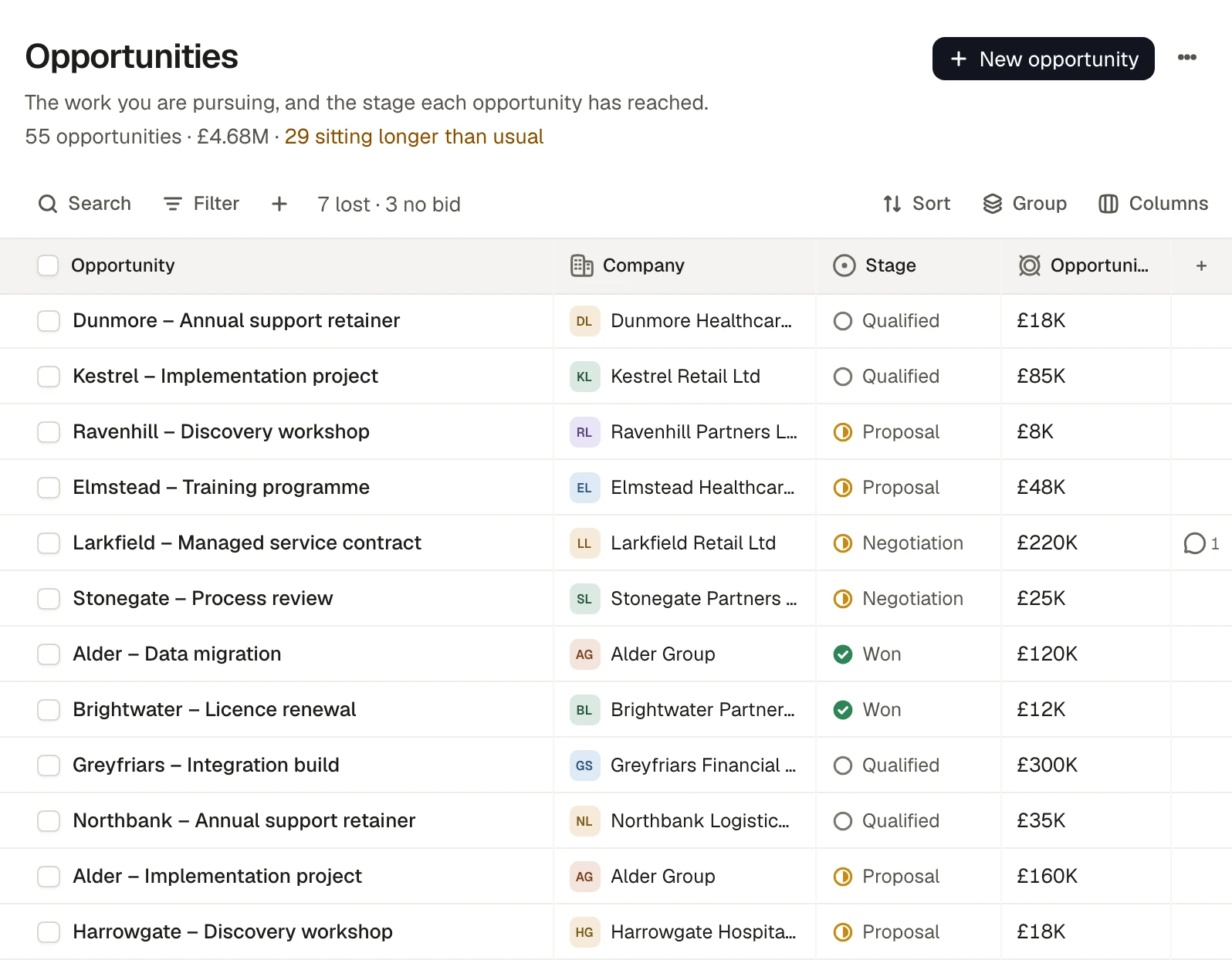
An Opportunity is always at one stage. A new Organisation starts with Qualified, Proposal, Negotiation, Won, Lost and No bid, and a Manager can change them in CRM’s Settings: rename a stage, add one, move it up or down.
Each stage carries its own meaning. You say whether it is open or closed (won, lost, or no bid), the probability an Opportunity takes when it arrives, the forecast group it falls into, and how many days it may sit there before it counts as sitting longer than usual. No bid is its own outcome, so it never counts against your win rate.
A table, a board or a dashboard
The same Opportunities can be shown as a table, as lanes by stage, or as a dashboard. Work through them in the table and move them between lanes on the board. Nothing is copied between views, so every view tells the same story.
Each Opportunity shows its Next action: the earliest-due open Action that follows it. Finish that Action and the next one takes its place. When some Opportunities have sat at their stage longer than usual, the header says how many, and choosing it filters to them.
A win becomes a Project
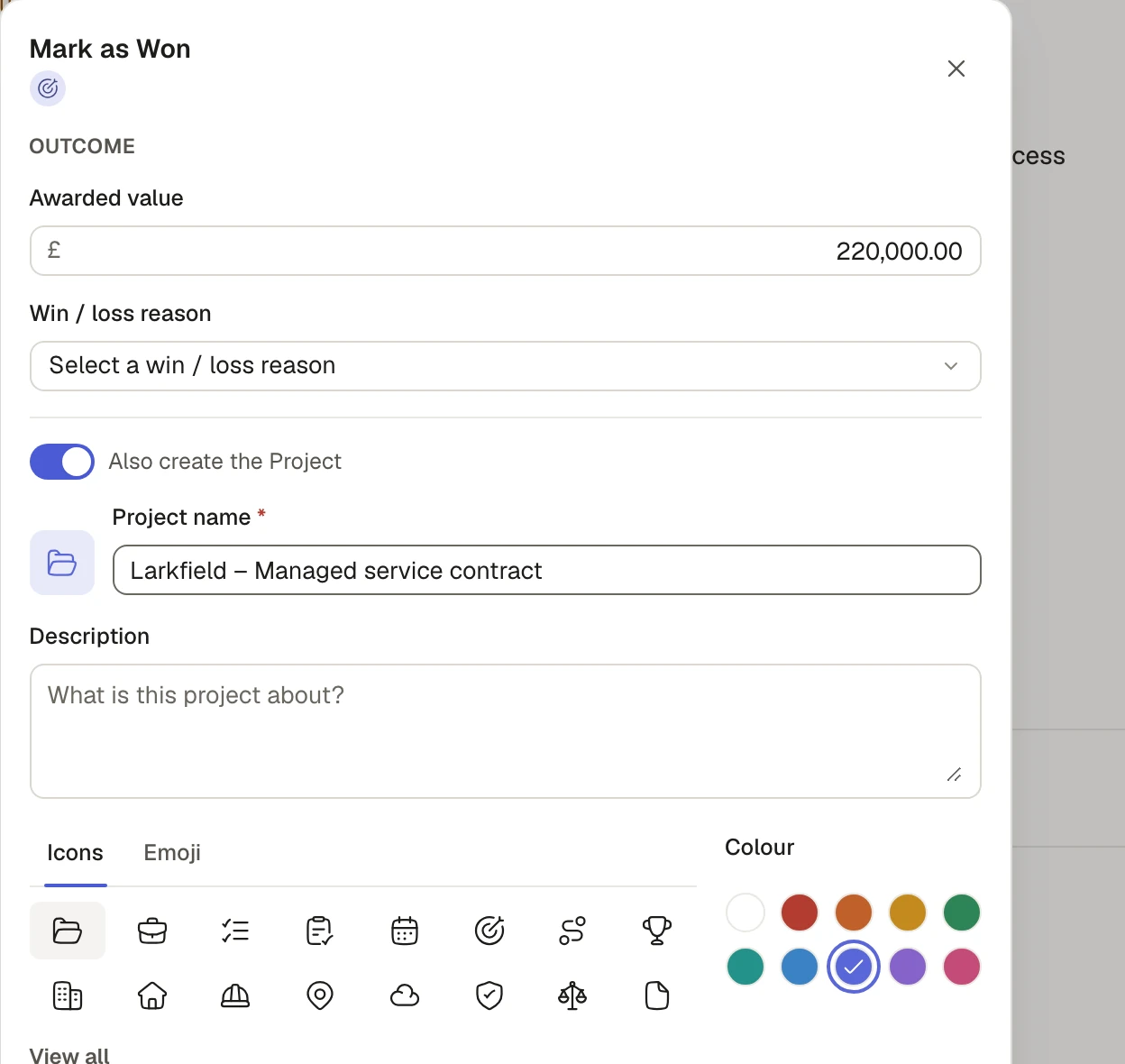
Open an Opportunity and choose Mark won. One dialog asks for the awarded value and the reason you won, and offers to create the Project at the same time. It is on by default, and its form is already filled in from the Opportunity: its name, Company and owner, and a worth that follows the awarded value you type. Choose Mark as Won and create Project and the win and the numbered Project are made together and linked.
If you would rather record the win alone, switch the Project off. A Create project button stays on the Opportunity for later. Losing or passing on an Opportunity asks for its reason once, which is what later tells you why you win and why you lose.
See whether you will hit your target
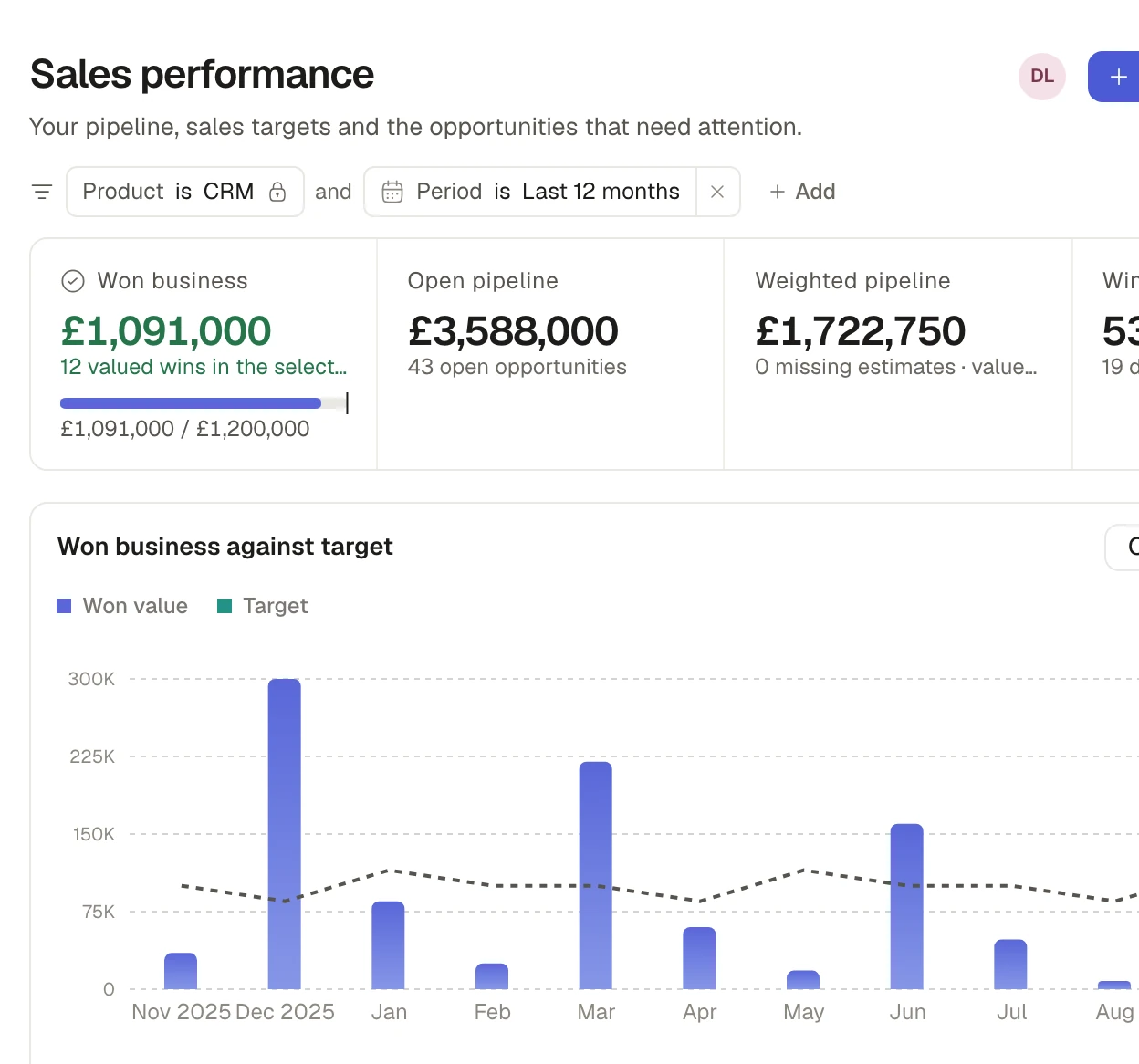
CRM opens on Sales performance: the value you have won, the open pipeline, the pipeline weighted by probability and your win rate, with a monthly chart of wins against target. It also lists the Opportunities needing attention and says why: no next action, a next action overdue, no expected close date, an expected close that has passed, or nothing said or logged on it for more than 30 days.
The Forecast asks one question: will we hit the target? It sets what you have won, and what you could still win by forecast category, against the target for the period. Targets are set on the Forecast itself, for the Organisation, for teams and for people. Pipeline changes shows what moved over any period you choose.
The conversation stays with the sale
An Opportunity records the people involved and the part each plays, such as budget holder or decision-maker, and the other Companies on it, such as a client, consultant or main contractor. Its Actions, files and comments sit on the same record. If you have connected your mailbox, Attach email keeps a message with the Opportunity, and it opens in Saphion.
You see only what your role allows. Beacon works within your own access too, so asking it never shows you more than you could open yourself.
Ask Beacon
Beacon reads and updates your CRM in plain words. Try “Which Opportunities are in Negotiation with no next action?”, “Will we hit the target this quarter, and what is the gap?” or “Add a Lead called Northgate Developments, referred by Priya, owned by me.” Beacon acts within your permissions and asks before a change that needs approval.
Where to start
- Choose CRM in the app switcher at the top of the sidebar.
- Open Leads under Pipeline, choose New, and add an enquiry. Or open Opportunities and choose New opportunity.
- Open Settings to set your stages, and the Forecast to set a sales target.
People use CRM with a CRM seat, which an Admin gives as Member (works in CRM) or Manager (also sets up CRM and sets targets).
Availability
CRM came with Saphion v0.4.0 for every Organisation that holds it. Your own stages arrived in v0.4.1, and creating the Project when you mark an Opportunity won in v0.6.0. Read the CRM guide in the docs.