
The work is in Saphion, but the paper trail is in Microsoft 365. The client’s email is in Outlook. The site meeting is in the calendar. The decision was made in a Teams chat, and the drawing is on SharePoint. Someone copies the useful parts across, and someone forgets.
Saphion does not ask you to move any of it. Connect your Microsoft 365 account once and your Projects, Actions and Beacon can reach your email, calendar, Teams, OneDrive and SharePoint. Beacon reads and acts there as you, with your account, and it asks before it sends anything. This article goes through what you get in each app, how Beacon behaves, and what your Admin controls. For the list of every connection Saphion offers, see Connections.
Connect once, as yourself
Open Settings > Connectors, choose Microsoft 365 and choose Connect. You sign in to Microsoft with your own account. Everyone with a Platform seat connects their own, so your mail and calendar stay yours: a colleague does not see them, and Beacon, working for a colleague, does not either.
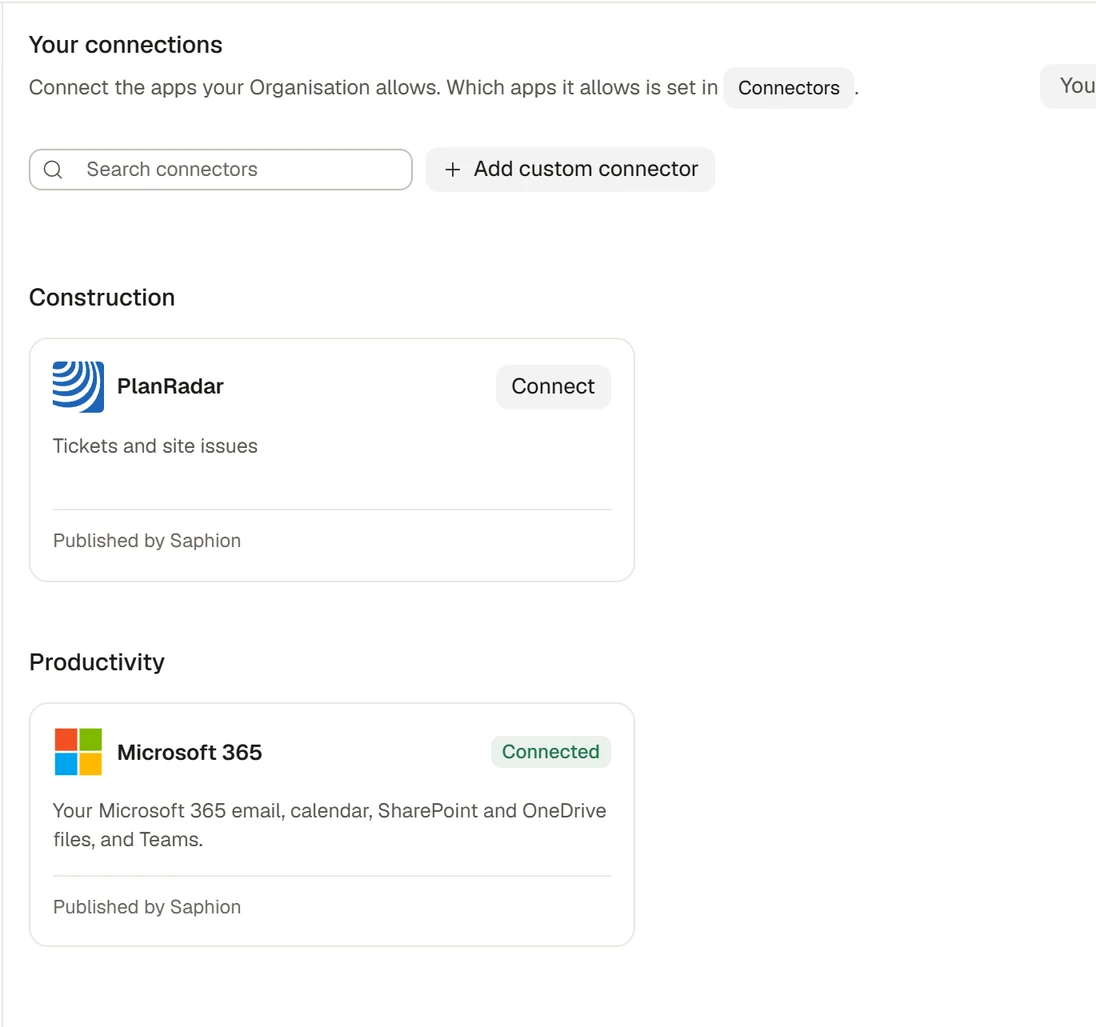
It is one connector with five apps inside it: Outlook Email, Outlook Calendar, Teams, SharePoint and OneDrive. They share the one sign-in, and Microsoft asks for permission part by part. If a part still needs your consent, Saphion shows Update access with the parts named. If a Microsoft 365 feature cannot be used, Saphion says which one is off and where to turn it on. If your sign-in lapses, the button reads Reconnect.
A new person is not left to find this. The Get started card on Home lists Microsoft 365 as one of its three steps, and ticks it once you have connected.
Outlook: email and calendar
With Outlook connected, you can ask Beacon to find the emails that need a reply, read a whole conversation, or find last week’s messages with attachments. It can search your mailbox and the shared mailboxes you already have access to in Microsoft. When you ask for a reply, Beacon drafts it with your signature and saves it as a draft in Outlook for you to read, change and send.
Email belongs to the work it is about. In a record’s panel, choose Attach email beside Upload, search your mailbox and pick a message. The linked email is kept in the record’s Attachments and opens in Saphion, so the Action carries the conversation that started it.
Your calendar sits beside your day. Meetings from Outlook appear in the Actions diary where they fall, read only: they open in Outlook, and you change them there. In Workload, your Outlook calendar gives busy time and time away, taken off once where they overlap. Only the amount of time is shared, so nobody else sees what a meeting is, when it is or who is in it. Your working hours are set in Saphion, never read from Outlook.
Ask Beacon “What is on my calendar tomorrow, and where are the gaps?” or “Find a free hour this week for a catch-up and draft the invitation.” Creating or changing an event with invitees sends something to other people, so Beacon asks first.
Teams: chats, channels and meetings
Beacon can list your teams, channels and chats, read your chats, and send a message to a chat or channel you choose. “Summarise my unread Teams chats” is a question it can answer. A message it sends is always shown to you first, with the chat’s people or the channel and its team named on the card, and goes only when you choose Allow once.
Two parts need your Microsoft 365 administrator to approve them in Microsoft first: reading the messages and replies in your teams’ channels, and reading meeting transcripts. Until they do, those two parts wait and the rest of Teams keeps working. With transcripts approved, Beacon can find a scheduled Teams meeting in your calendar and read its transcript for the recap, the decisions and the follow-ups.
The same connection lets Notetaker join a Teams meeting you choose from your calendar. See Notetaker.
OneDrive and SharePoint: files that stay where they are
Open Files and the sidebar lists Connected: your OneDrive, the SharePoint sites you can reach, Outlook and Teams. They are read live from Microsoft as you and are not copied into Saphion, so a file is always the one in Microsoft, and you see only what Microsoft lets you see. With nothing connected, the same place offers Connect Microsoft 365.
In a Project’s settings, Connectors lists SharePoint folders, and Link a folder links the Project to the folder where its documents live, so they are one click from the job. Linking copies nothing.
Beacon can search files, read a file’s text, and bring a file into Saphion when you ask. It can also save a file it has made to your OneDrive or SharePoint, or replace the content of a file it has read. That replacement is refused if the file changed since Beacon read it, so a colleague’s edit is never overwritten without notice. Deleting a file in Microsoft 365 is something only you can do: Beacon is not offered it.
Saphion in Outlook
Saphion is also inside Outlook itself. While you write an email, a Saphion pane lists your Projects. Pick one and the subject reads “<Project ID> <name> - <topic>”, with the number first so it survives a phone’s cut-off subject. It is written for people who file email by job.
It handles the cases that make a rule like this annoying. A “Re:” or “Fw:” that Outlook, or another mail client, put in front stays in front, and the label goes after it. Pick a different Project and the old label is replaced, so a Project is never added twice. If the Project and your subject would be longer than Outlook’s own limit of 255 characters, it tells you and changes nothing, rather than cutting your subject off.
Your Microsoft 365 administrator installs it once for the people who should have it. Saphion lists the steps on the Microsoft 365 connector’s page:
- In the Microsoft 365 admin centre, open Settings, then Integrated apps, then Upload custom apps.
- Choose Office Add-in, then Provide link to the manifest file, and paste the install link from Saphion.
- Choose who gets it and deploy. It appears in Outlook within a few hours.
Beacon uses it as you, and asks before it sends
A connector never gives Beacon, or you, access you do not already have in Microsoft. Beacon signs in as you, so if you cannot open something in Outlook, Teams or SharePoint, neither can Beacon. What Beacon does with a connected account falls into three kinds, and each has its own default:
| Kind of act | Examples | By default |
|---|---|---|
| Read | Find and read emails, conversations and attachments; read calendar events and availability; read Teams chats; find and read files | Runs without asking |
| Change | Create or edit an email draft; move, flag or categorise an email; save or update a file | Needs approval: Beacon shows what it will do and waits |
| Send | Send, reply to or forward an email; create, change, answer or cancel a calendar event with other people; send a Teams message | Always asks. It can never be set to Always allow |
When Beacon reaches something that needs approval, the chat stops and a card above the box says what it wants to do. Allow once lets it do that once. Deny stops it. Allowing once changes no setting, so it asks again next time.
The levels are yours to change. On the connector, Tool permissions lists each tool under Read-only and Write & delete. You can make a tool stricter for yourself, for example setting email drafts to Blocked, and you can switch Microsoft 365 off for one chat from the Add menu beside the Beacon box. If Beacon needs something from a system you have not connected, it says so and offers the connector’s button in the answer. It never connects anything itself.
Rules that listen to your account
A connected account can start an Automation. Automate this account, in the account’s menu, begins a rule that listens to it: an email arrives in a folder, a calendar event changes, or a file in a drive changes. The steps can use what was read. For example, Check text can judge a received email against questions you set, and the rule can carry on down the path for the answer.
A rule that sends anything through your account asks first, too. Turning it on lists each send: the account it goes from, who receives it and what it says. You allow exactly that list, and if the rule later changes what it sends, it pauses until you turn it on again. See Automations.
What your Admin controls
An Admin decides whether Microsoft 365 is available to the Organisation, from Settings > Organisation > Connectors. It is one switch, even though it holds five apps. Off stops anyone connecting it and withholds its tools from Beacon. People can still ask for it, and the Admin sees the request and answers with Approve or Decline, with a reason if they wish.
An Admin also sets a ceiling for each tool, for everyone. The ceiling is the most anyone may allow: a person can make a tool stricter for themselves, never looser. Changes to the Organisation’s connectors are recorded in Audit. Disconnecting an account ends access through Saphion and deletes nothing in Microsoft 365.
Can Beacon see more than I can?
Will a colleague see my mail or calendar?
Why can I not choose Always allow for sending?
Why does Saphion say Request instead of Connect?
Availability
Microsoft 365 is part of Saphion for everyone with a Platform seat, and every supported connection is included, with no connector fees. Saphion in Outlook came with v0.11.0. Read the Connectors guide in the docs, and Connectors for your Organisation if you are an Admin.