
Many people already have an assistant they like. It might be Claude, Claude Code in the terminal or Codex beside their code. Until now, using it with your work meant copying things out of Saphion and pasting the answer back in.
You can now connect those tools to Saphion itself. Ask Claude to list the Actions due this week, ask Codex to log what it found on a Project, and the work happens in Saphion, in your Projects and records, where everyone else can see it. The tool signs in as you and can do only what you can do. Beacon, Saphion’s own assistant, is still there inside Saphion. This is for the days when you would rather stay where you are.
What you can ask
A connected tool reads what you can read: Projects, Actions, records and their comments, files, boards, dashboards, Activity, your calendar and the systems you have connected. Ask it in the words you would use with a colleague.
- “Use Saphion to list my open Actions due this week.”
- “Draft an Update on this Project from what changed since Monday.”
- “Add this PDF to the Project’s Files.” Saphion gives the tool a link for that one file, which works for 15 minutes and then expires.
- “Import this spreadsheet into the Contacts board.” The file goes into an import that you review before anything is written.
It can change things too, as long as Change Saphion is on for that tool in your Organisation. It can change records you could change yourself, draft Actions and Updates, build a dashboard widget by widget as Beacon does, and add a board’s fields and sections. If you belong to several Organisations, ask the tool which ones you have and to use one of them. Every reply says which Organisation it worked in.
Connect a tool
Open Settings, then Capabilities, then Saphion in other AI tools, under Preferences. It shows your Saphion’s server address with a Copy button, and a section for each tool with the exact steps. Copy the command from there rather than typing it: it carries your Saphion’s registered application, which the tool needs in order to sign in.
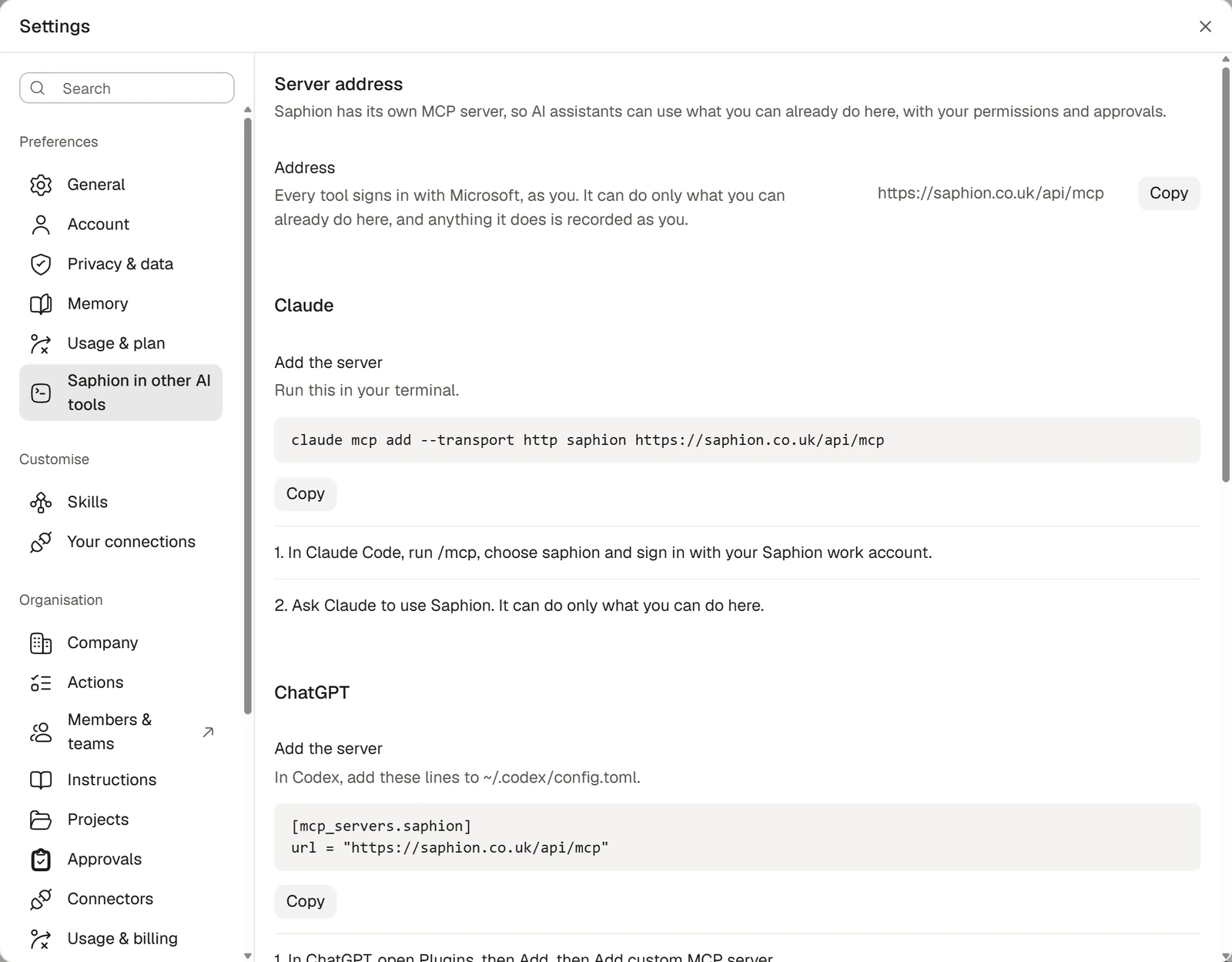
For Claude Code, run the command in your terminal. It has this form:
claude mcp add --transport http --client-id <Claude application ID> saphion <server address>Then run /mcp in Claude Code, choose saphion and sign in with your Saphion work account.
For Codex, add the lines Saphion shows you to ~/.codex/config.toml. They have this form:
[mcp_servers.saphion]
url = "<server address>"

[mcp_servers.saphion.oauth]
client_id = "<ChatGPT application ID>"
Then run codex mcp login saphion and sign in with your Saphion work account. Codex shares ChatGPT’s connection, which is why its section in Settings is headed ChatGPT. ChatGPT on the web is not supported yet.
Everyone with a Platform seat can connect their own tools. If a tool says “Not set up yet”, or the server address says “Not published yet”, ask your Saphion contact to turn it on for your Organisation.
It is still you
Every tool signs in with Microsoft as you, so it has your access and nothing more. It cannot see or do anything you could not do yourself.
- It asks first. Anything that deletes something holding data, or sends something through a connected system, asks, as the app does. A tool that supports prompts shows the question with Allow once and Do not allow.
- Some things stay yours. A connected tool can never delete anything for good or empty the Bin, share anything, change anyone’s access, change who is in a Team, invite or deactivate people, or manage seats or billing. Those are done by you, in Saphion.
- It is recorded under your name. Saphion’s Activity shows a change as made by the tool for you, and a comment or update it posts says which tool posted it. Each tool that has done something for you has an Activity row in Settings that opens what it has done.
If a tool makes a change you did not want, open Activity to see what it did and change the record back or restore it.
Your Admin has the last word
Only an Admin sees External assistants, at the foot of the same settings tab. For each tool there are two switches.
| Switch | What it allows |
|---|---|
| Read Saphion | Read what the person may access across Saphion and their connectors. |
| Change Saphion | Make changes the person may make, with the same permissions and approvals. |
With Change Saphion off, a tool can still read and is not offered anything that changes things. With both off, it is blocked in your Organisation and says so. The change applies on the tool’s next call, for everyone in the Organisation, and Use existing access returns the tool to your people’s own permissions. These switches cannot change who has access or manage seats, and they do not supply AI inside Beacon.
What leaves Saphion
What a tool reads leaves Saphion for that tool and its provider, so Saphion applies its data-use checks to what each tool is sent. Sign-ins are held by Microsoft, and Saphion keeps no list of the tools you have signed in. To stop your own use, remove the server in that tool. To stop a tool for everyone, an Admin switches off its permissions.
Which tools can I connect?
Why does a tool say my administrator has restricted it?
Why does work done through Codex say ChatGPT?
Where does a tool’s work show up?
Availability
Connecting your own tools is included with every Platform seat. Saphion’s own assistant is described on the Beacon page, and the setup steps in full are in the docs.