
A job is rarely kept in one place. The tasks are on a list, the drawings are in a shared folder, the programme is a file on someone’s laptop, and the story so far is in a long email thread. When the client asks where things stand, somebody has to go and put the answer together.
In Saphion a Project is one job, and it is where that work comes together: its Actions, files, people, conversations, Overview and Programme. Nothing is copied into it. An Action shown in a Project is the same Action you see in My actions and on Home, and a file filed in a Project is the same file everywhere else.
Start a Project
Choose New project on Home, on the Projects page, or with the plus beside Projects in the sidebar. Give it a name, a mark and a colour. You can add a description, a Project lead, its start and target dates, and the client, one of your Organisation’s Companies. Your Admin chooses which other details are asked for and which are required, and a required detail is marked with an asterisk. A Project ID, letters or numbers you type, can sit under the name, and any search finds the Project by it.
A new Project is invite-only. It opens for you and for the people or Teams you add to Access, and for nobody else. Every Member can start a Project unless an Admin takes that away, or gives the Create projects Permission to a chosen group instead, such as your estimators.
A Project can also begin as a sale. In the CRM, marking an Opportunity won offers to create its numbered Project in the same step, so the job you sold is the job you deliver. CRM: from first enquiry to a numbered Project shows how.
The Overview: where the job stands
A Project opens on its Overview. About says what the job is. Details holds the lead, the client and the dates. Coming up lists the next open Actions, Action progress shows how much of the work is completed and how much is outstanding, and the Project’s recent activity sits beside them. If the Project has a programme, its Milestones are drawn on a timeline you can read by weeks or by months.
Select a figure and the Actions behind it open, so the number and the list always agree.
Actions and the Programme
A Project’s Actions tab lists the work that belongs to it. New action there starts an Action in this Project, and the Project is fixed on it. Saved views of the Project’s Actions sit beside it, and the filter shows a locked row, Project is this Project, so the tab says what it is. For how an Action is planned, assigned and finished, see Actions and My actions: know what needs you.
The Programme tab holds the Project’s schedule. Add a milestone from the Project’s ⋯ menu with a name and a date, and the tab appears. Or choose Upload programme and bring in a programme file: Asta Powerproject, Primavera, Microsoft Project or a spreadsheet. Upload a newer file later and the lines are updated by their source ID, never duplicated, and tasks the file dropped are archived. Select a line to open it, and see the Actions filed beneath it. Only someone who may change the Project can add a milestone or upload a programme.
A Project that has a programme takes its dates from it, so the Overview leaves the separate start and target dates out.
Files and conversations
The Files tab is the Project’s files: documents, spreadsheets and PDFs in one place, with search, a filter and a sort. Beacon reads them when you chat in the Project. Creations holds what has been made in the Project, such as its Boards and Dashboards. Documents and Dashboards made in a Project belong to it, and everyone in the Project can open them.
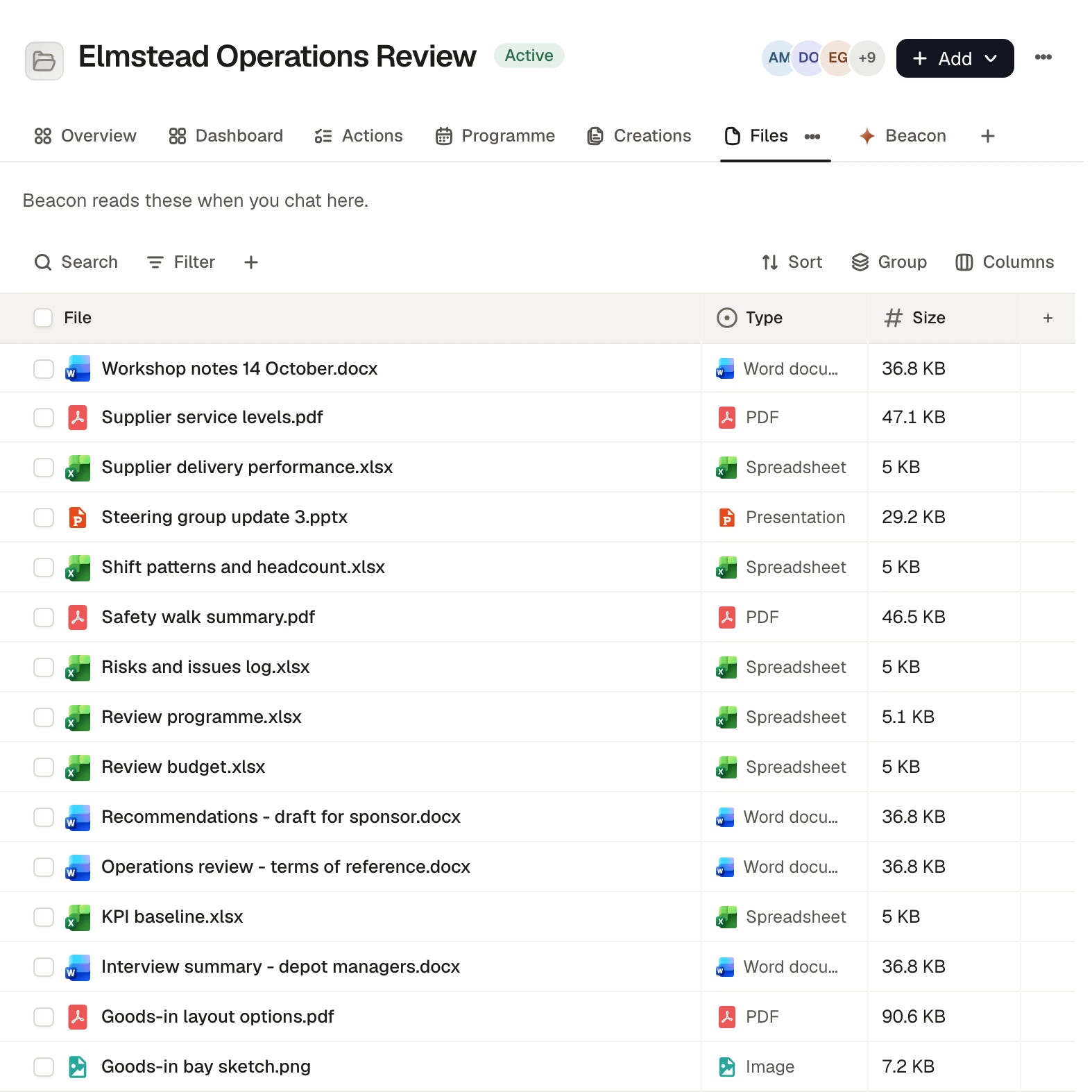
Every Project also has its own page in Beacon. Chats you start there are filed in the Project, and the page holds the Project’s Instructions, which apply to every chat in it, its Context, which are its files, and its Memory, the facts Beacon has been asked to remember for this job. Instructions need permission to change the Project, and nothing in them changes who can see or do what.
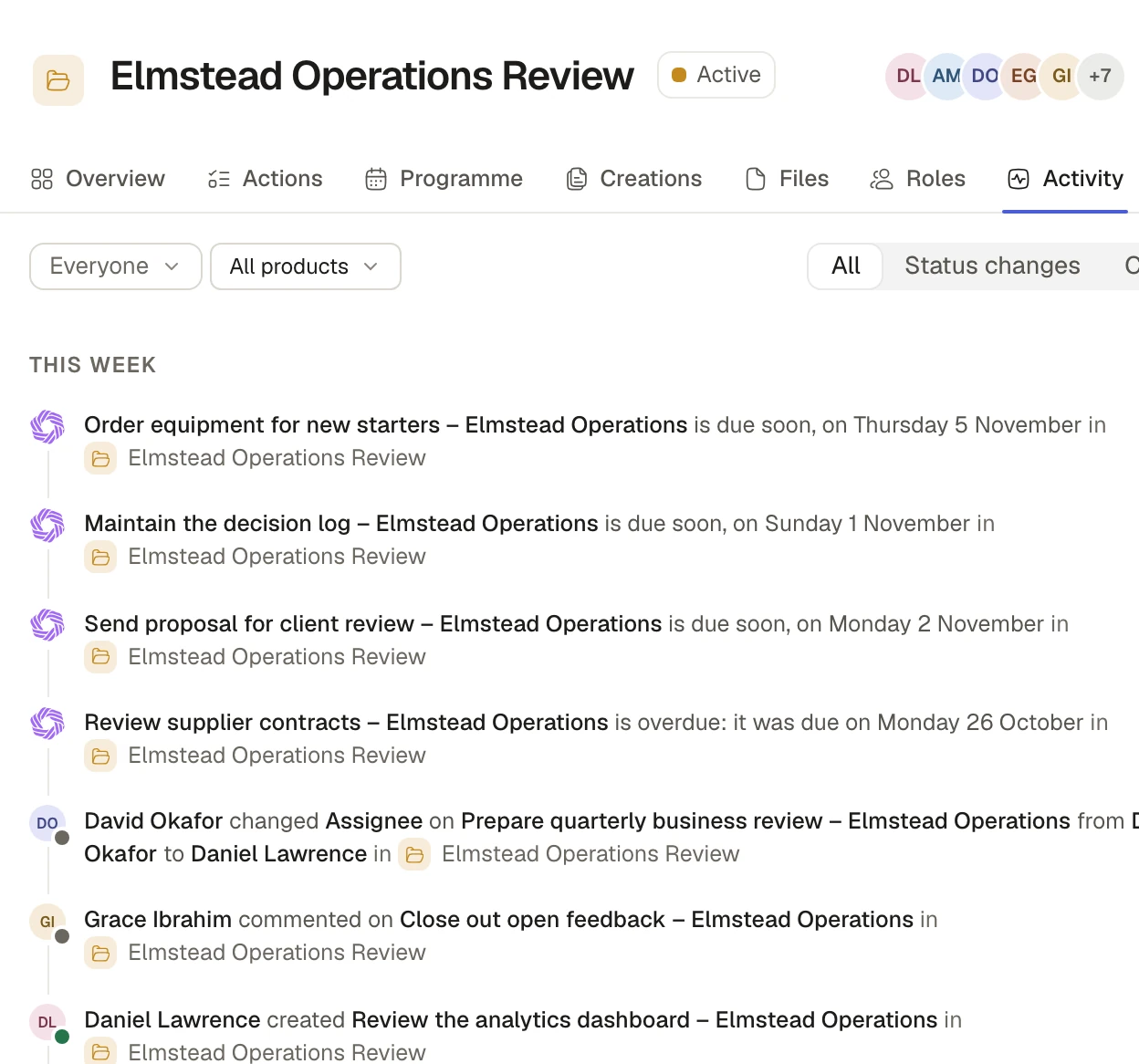
The Activity tab, added with the + at the end of the tabs, is a feed in plain sentences of what has changed in the Project, including what happened to the records and files inside it.
Choose the tabs, share the Project
A Project opens with a short row of tabs, and the + at the end adds the others: Meeting notes filed here by the Notetaker, Chats, RAMS documents, the records filed inside the Project, Roles, Activity, or an existing Document, Dashboard or Board. Anyone who may arrange the Project drags a tab into place or hides it, and a hidden tab comes back from the +. Everyone who opens the Project sees the same tabs. To make your arrangement the standard, choose Use as the default for every Project.
Share gives each person or Team one of four levels. A Viewer reads. A Contributor comments and updates and completes the Actions assigned to them, but cannot change deadlines or assignments. An Editor edits and assigns Actions. A Manager edits and also changes who has access. The Project lead is filled on the Roles tab and has Editor access. Saphion never opens a Project to the whole Organisation by default, and if you try to open one you cannot, it says so and shows you how to ask, without telling you anything about what is inside.
Closing, archiving and deleting
The Project status pill under the name moves the Project through the stages your Admin sets, which start as Planning, Active, Closing, Complete and Cancelled. When you close a Project, Saphion first checks that no work is still open under it. If some is, a dialog lists the open Actions so you can Complete, Cancel or Move each one to another Project, one by one or all at once. Reopening a closed Project asks for a reason, which is kept with it.
Archive project takes the Project and its chats out of normal views and makes it read only until you restore it. Delete project removes it for good: Saphion counts what it holds and asks you to type its name, and it does not rest in the Bin, so archive instead if you might want it back. Duplicate project copies its details into a new Project, and its Actions too if you ask. History, files and sharing are not copied.
A Project or a Workspace?
A Project is a job, with a lead, a client, dates and a programme. A Workspace is where a team works when the work is not a job: an HR training register, a fleet list, a safety log. It holds the Boards, Dashboards, Documents and files a team uses day to day, has its own people and has Beacon on top, and asks for no lead, client or dates. Projects are not listed under Workspaces, and Workspaces are not listed under Projects. A Project is one job: it has no sub-Projects, and asking Saphion or Beacon to make one is refused with nothing made.
Ask Beacon
Beacon works with the same Projects, as you, and only within the access you hold. Try “Create a Project called Harbour Road Fit-out, led by Priya, with a target date of 30 April” or “What is open on the Harbour Road Project?” A chat started in a Project is filed in it, and Beacon reads the Project’s files, instructions and memory there.
Where to start
- Choose New project, name it, and add its lead, its dates and the people who should open it.
- Choose New action to add the first piece of work, or bring in a template’s Actions with Import from template.
- Add a milestone from the ⋯ menu, or upload a programme file, and read the Project’s Overview.
Every Member can start a Project and open the ones they are invited to. See the Platform.
Availability
Projects came with Saphion v0.1.0, with Actions, the Programme and Templates. A Project’s programme has its own tab and upload from v0.5.0, Workspaces and tabs you can add and move from v0.11.0, and the + that offers what fits, with a default set of tabs for every Project, from v0.11.2. They are in every Organisation. Read the Projects guide in the docs.